
Certificates are available for most Ausmed courses and training modules, providing evidence that you have successfully completed an activity.
To download a certificate for training assigned to you by your organisation, you first need to add a reflection to document the activity in your Portfolio.
If you’ve already added a reflection, click here for instructions on downloading the certificate directly from your Portfolio.
How to add a reflection to download your certificate
On a desktop computer:
- Login to your account
- Click 'My Organisation' in the top menu bar to access your organisation's portal on Ausmed
- Next, click 'Overview' in the left-hand side menu. Then scroll down to your 'Assigned Learning' list and click on the 'Completed' section
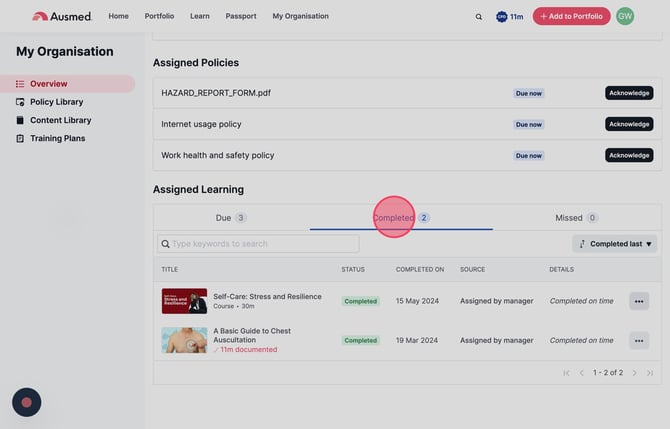
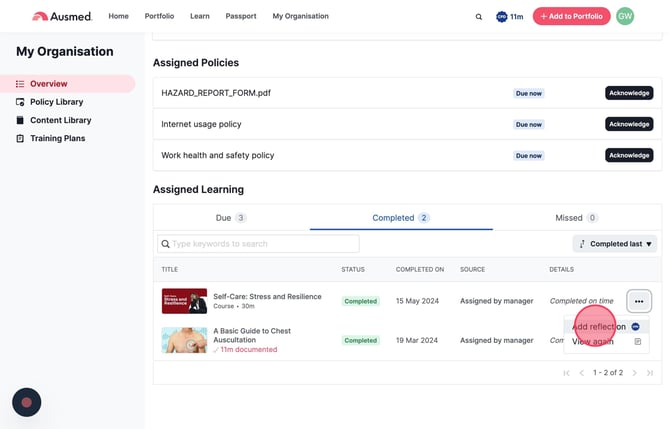
- Locate the activity, click on the three dots icon and click 'Add Reflection'
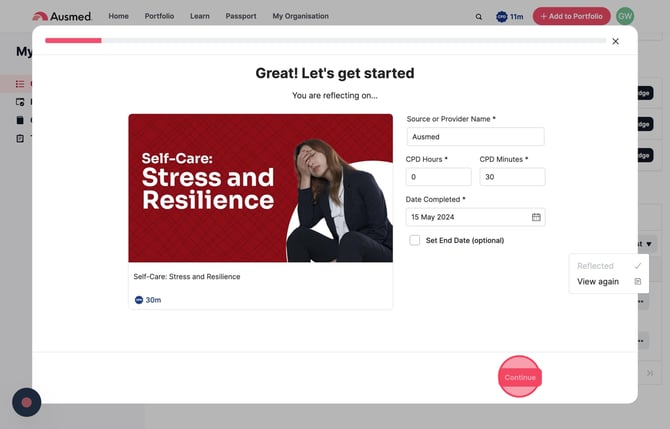
- Click 'Continue' and follow the prompts to add a reflection
- Finally, when you reach the 'Attach your evidence' screen, click on the .pdf attachment
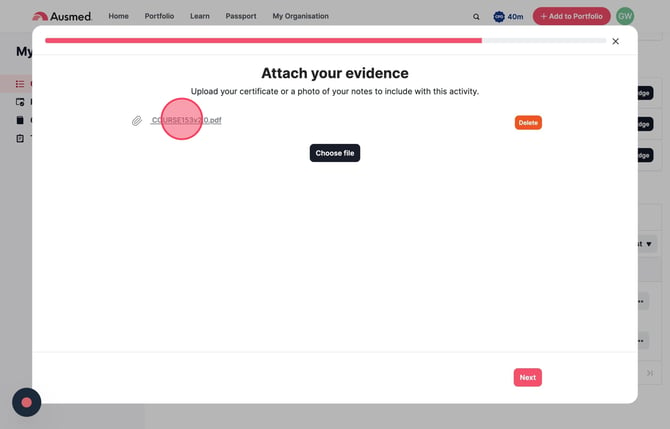
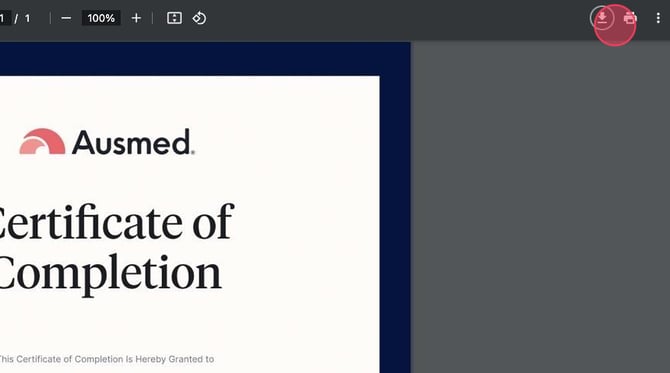
- The certificate should open in a new tab. If it doesn't, ensure that pop-ups are enabled in your browser
- Click on the download or print icons located at the top right of the .pdf viewer to either save your certificate to your computer or print it
- Return back to the 'Add reflection' flow, then click 'Next' to continue through the remaining steps until you reach the 'Finish' button to close the flow.